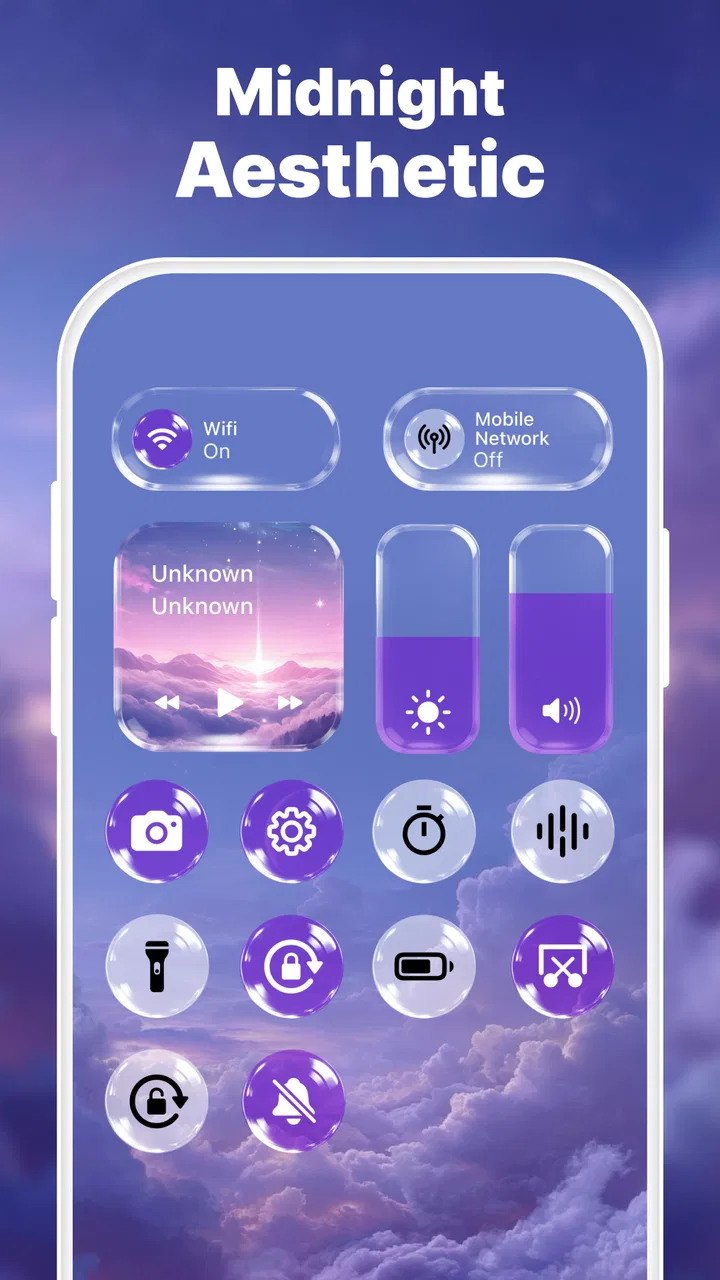
Control Widget: Theme & Panels
- 4.4
- Rating
- 10.00M
- Installs
- Free
- Price

 Analysis by App-foxy
I like personalization apps that change how a phone feels without asking me to rebuild my entire routine. Control Widget: Theme & Panels takes that approach by focusing on the control area: the part of the device I reach for when I want quick access to everyday controls. Instead of treating appearance as a separate wallpaper project, it brings themes, a control widget, and a panel into one customization experience.
That sounds simple, but the useful question is whether the visual changes remain convenient after the first setup. In my experience, this kind of app succeeds only when the panel looks good and still lets me reach what I need quickly. A beautiful layout that creates confusion is not much of an upgrade. This review looks at that balance, including the setup points where users may get stuck, the best way to recover from an awkward arrangement, and the situations where the phone itself is actually responsible for the problem.
What the app changes and who will enjoy it
This is a free personalization app from WECHOICE MOBILE, aimed at people who want more control over the appearance of their device’s control area. Its main appeal is the collection of more than 200 aesthetic themes, combined with a control widget and panel. That gives it a broader purpose than a simple wallpaper tool: the goal is to make a frequently used part of the interface feel more coordinated with the rest of the phone.
You May Also Like

 Blood Strike: 2.5 Anniversary
Blood Strike’s Loadouts Turn Every Drop Into a Tactical Gamble
A close look at Blood Strike’s custom loadouts: how fast access to signature weapons reshapes its battle royale rhythm, rewards preparation, and narrows the gap between fights.

 Pandora - Music & Podcasts
Pandora’s Music Is Easy to Start, but Harder to Recover
Pandora’s strength is its low-effort path from a seed to a station. Its weak spot is how much confidence it asks you to place in connection, setup, and quiet recovery.

 8 Ball Pool
 Is Built on Rivalries, Rematches, and Routine
A close look at the rivalries, rematches, shared routines, and unanswered safety questions that turn a quick pool match into a persistent mobile community.

 Samsung Music
’s Quiet Strength Is Playing What You Already Own
Its reach comes less from spectacle than from dependable access to a personal library. That simplicity is both the app’s strongest retention engine and its ceiling.

 AccuWeather: Weather Radar
AccuWeather Review: A Quick, Clear Forecast for Everyday Decisions
For everyday plans, the best forecast is the one you can understand quickly. AccuWeather makes rain timing, radar, and local conditions easy to act on, with a few trade-offs.

 Hill Climb Racing
Why Hill Climb Racing Still Turns Crashes Into One More Run
A tiny car, a bumpy hill and one more upgrade: Hill Climb Racing keeps resurfacing because its simple chaos makes every near-miss feel personal.
More From Our News Desk



I see the strongest fit for users who enjoy matching their phone to a mood, color palette, or general visual style. Someone with a dark, minimalist home screen may prefer a restrained panel, while another person might want something brighter and more decorative. The large theme selection makes browsing part of the experience rather than forcing everyone into one look.
The app is rated for Everyone, so it is approachable for a wide audience. It also has a 4.5 average from around 6,700 ratings, with over 5 million installs, which suggests that the basic idea has attracted a substantial user base. Those figures do not replace personal testing, but they do make the app feel established enough to consider rather than experimental.
The current version is 1.2.0 and runs on Android 8.0 or later. That compatibility is useful for people who keep an older phone for longer, although visual customization can still feel different across manufacturers. Android is not one identical environment: a Samsung phone, a Motorola phone, and a device with a heavily modified interface may handle panels and widgets in noticeably different ways.
Where the first setup can become confusing
The most likely point of friction is not choosing a theme. It is understanding what the theme changes, where the control panel appears, and how the widget fits into the existing home-screen layout. Personalization tools often look obvious while browsing, then become less clear when the user tries to make the result part of a daily routine.
I would approach the first launch slowly. Pick one theme that is easy to read rather than immediately choosing the most decorative option. A panel with strong contrast is more useful for testing because it lets you see whether labels, icons, and controls remain comfortable to use. Once the basic arrangement works, changing the style is much easier than trying to diagnose both appearance and behavior at the same time.
Another common stumbling block is expecting the app to replace every part of the phone’s system interface. Its purpose is to customize the control widget and panel, not to turn the entire operating system into a new platform. If the home screen, notification shade, lock screen, and system settings still look different, that is not necessarily a failure. The app should be judged by the area it is designed to personalize.
I also recommend checking the result in both a calm setting and a rushed one. A panel can look elegant when viewed for a few seconds, yet become frustrating when I am trying to change a setting quickly. The practical test is whether I can recognize the control I need without stopping to study the design.
Simple setup checks before blaming the app
Before changing themes repeatedly, I would check the fundamentals. The phone should meet the Android 8.0 minimum, the app should be updated to its current version, and there should be enough room on the home screen for the widget to sit without being squeezed into an awkward position. These are basic checks, but they prevent a surprising amount of confusion.
Widget placement deserves more attention than it usually gets. If the widget is pushed into a narrow space, the appearance may feel broken even when the selected theme is working correctly. I prefer leaving a clear area for it, then checking how it looks beside the existing icons. A tidy arrangement makes the panel feel intentional; a crowded one makes the app seem less polished.
It is also worth testing one theme at a time. If I switch themes, move the widget, and alter several phone settings together, I lose track of which change caused an unexpected result. A more reliable workflow is to select a theme, observe the panel, test the controls, and only then adjust the layout. This is especially helpful on phones with manufacturer-specific interface changes.
Users should also distinguish between the app’s visual layer and the phone’s normal behavior. If a control responds slowly, disappears, or behaves differently from expectation, I would first check whether the same issue happens outside the customized panel. That comparison tells me whether I am looking at a theme problem, a widget placement issue, or a broader Android behavior.
The app is free to install, while optional in-app purchases range from $0.99 to $5.99 per item. I would treat that as a reason to explore the free experience before spending anything. The important decision is not simply whether a theme looks attractive, but whether the overall panel becomes useful enough to justify paying for additional customization.
Recovering a workflow that no longer feels right
One practical advantage of a theme-based system is that I can recover from a poor choice without rebuilding the phone from scratch. If a layout feels too busy, I would return to a simpler theme rather than trying to repair every visual detail manually. The goal is to restore clarity first, then experiment again from a stable starting point.
When the panel seems to have stopped behaving as expected, I would use a small recovery sequence: leave the app, check the widget’s position, reopen the app, and test the selected panel again. If the problem remains, switching to another theme can help identify whether the issue is tied to one design or to the wider setup. This is safer than making many changes at once because it keeps the diagnosis understandable.
A useful habit is to keep a familiar theme available as a reference. I would not constantly change everything while troubleshooting. Returning to a known, readable design gives me a visual baseline. If the familiar theme works but a new one does not, the problem is likely connected to that selection or its layout. If neither behaves properly, I would look more closely at the phone environment.
There is also a workflow trade-off between novelty and speed. A highly expressive theme may make the phone feel more personal, but a quieter design can be better for work, driving, or any situation where I need immediate recognition. I like having a distinctive option for leisure and a practical option for daily use. That is one of the less obvious strengths of a large theme library: it allows the panel to match different contexts instead of locking the phone into one permanent mood.
Another tip is to judge the panel with the phone held naturally, not only while it is lying flat on a desk. Elements that appear balanced in a preview may be less comfortable when reached with one hand. The widget’s position, the visual density, and the amount of attention required all matter more during movement than during setup.
When the phone, not the app, is responsible
Android customization is affected by the device itself. Manufacturer software may change how widgets are placed, how panels are reached, or how background activity is handled. If the app behaves normally on one device but feels inconsistent on another, that does not automatically mean the theme or panel is defective. The phone’s own interface rules may be shaping the result.
A useful test is to compare the customized control area with another widget or system element on the same device. If several widgets have positioning or refresh issues, the broader phone environment deserves attention. If only one theme appears unusual while other themes remain usable, the issue is more likely connected to that visual choice rather than the entire app.
I would also avoid assuming that every visual mismatch is a technical fault. The phone may apply its own spacing, scaling, or contrast behavior, especially on screens with unusual display settings. A theme can be functioning while still looking different from its preview because the device renders the surrounding interface in its own way.
Restarting the phone is a sensible general troubleshooting step when a widget or panel seems temporarily unresponsive. So is checking whether the issue survives after opening the app again. These are ordinary recovery actions, but they are useful because they separate a temporary interface hiccup from a consistent limitation.
People who need guaranteed access to a particular system control should be cautious. A customization layer can improve appearance, but it should not replace the phone’s standard route for important settings until the user has confirmed that the new workflow is dependable. I would keep the original system access familiar, especially for controls I may need in an urgent situation.
How it compares with ordinary Android customization
The usual alternative is to combine a wallpaper app, an icon pack, and the phone’s built-in widgets. That route can produce a very coordinated home screen, but it often requires more manual matching. Control Widget: Theme & Panels is more focused: it concentrates the visual work around the control area, which is helpful if that is the part of the phone I want to change first.
Built-in Android tools are generally the safer choice for users who value consistency above appearance. They are already integrated with the device, and they are less likely to introduce a new visual layer that needs adjustment. The trade-off is that the standard controls may feel plain or may not match a carefully designed home screen.
Full launcher customization is more powerful when I want to change icons, grids, gestures, and the overall home-screen structure. However, it can also be more demanding and can affect habits that already work well. This app is a better fit for someone who wants a targeted change rather than a complete launcher replacement.
That focus is both its strength and its limitation. If the control panel is the visual detail that bothers me, the app addresses the problem directly. If I want a completely redesigned phone experience, I would probably get more value from a launcher and a broader customization toolkit. Choosing between them depends on how much of the interface I actually want to disturb.
Who should use it, and who should skip it
I would recommend trying it if you enjoy visual organization, regularly adjust the appearance of your phone, or want a themed control area without committing to a full launcher change. It is also appealing for people who like switching styles between seasons, activities, or personal moods. The free entry point makes experimentation relatively easy, while the optional purchases leave room for users who want more from the theme collection.
A realistic everyday example would be someone who keeps a clean home screen for work but wants quicker visual recognition of the controls they use at home. They could choose a restrained theme for the workday, test the widget placement until it is easy to reach, and then switch to a more expressive style later. The value is not just decoration; it is the ability to make a frequently visited area feel more deliberate.
I would skip it if I rarely use control widgets, dislike changing familiar system behavior, or need every interface element to remain exactly as Android provides it. I would also be cautious if my phone already has frequent widget problems or an unusually restrictive manufacturer interface. In that situation, the built-in controls may be less attractive but more dependable.
Users who are sensitive to visual clutter should begin with the simplest available style rather than assuming more decoration means more personality. The best result may be a theme that changes color and atmosphere while preserving clear separation between controls. For me, readability is the deciding factor: if I cannot identify an action immediately, the visual improvement is not worth the friction.
My practical verdict after using the concept
Control Widget: Theme & Panels is most convincing as a focused personalization tool, not as a replacement for the entire Android interface. Its combination of a large theme selection, a control widget, and a panel gives it a clear identity. I like that it aims at a part of the phone I actually visit, rather than adding another decorative layer that I might never see.
The main caution is setup patience. The first theme should be treated as a test, not a final commitment. Give the widget enough room, check the panel in real use, and compare unusual behavior with the phone’s standard controls before deciding that something is wrong. That approach makes it easier to tell the difference between a weak design choice, a placement issue, and a device-specific limitation.
With a 4.5 average and a growing audience of over 5 million installs, the app has clear appeal, but its usefulness still depends on the phone and on the user’s priorities. I would not choose it for maximum system reliability or deep launcher-level control. I would choose it for a more personal, visually coherent control experience that can be adjusted without redesigning everything else.
My recommendation is to start with the free version, select a readable theme, and use it for ordinary tasks rather than judging it only from the preview. If the panel remains comfortable after several real interactions, the app has earned a place on the phone. If it slows down access or clashes with the device’s own interface, the standard Android controls are the better option. The right theme is the one that makes control easier, not merely the one that looks most impressive.
FAQs for Control Widget: Theme & Panels
01What is Control Widget: Theme & Panels?
Control Widget: Theme & Panels is a versatile app designed to enhance your device's customization options. It allows users to create personalized widgets and panels, offering a wide range of themes and styles. This app is perfect for those who love to tailor their device's interface to reflect their personal taste and style.
02Is Control Widget compatible with all devices?
Control Widget: Theme & Panels is compatible with most Android and iOS devices. However, it's essential to ensure your device runs on a compatible operating system version. Check the app store listing for specific version requirements to guarantee smooth performance and full functionality.
03Does Control Widget consume a lot of battery?
While Control Widget: Theme & Panels is designed to be efficient, any app that runs widgets and real-time updates may have some impact on battery life. Users can manage settings to optimize performance, such as reducing update frequency or disabling certain features when not in use to conserve battery.
04How customizable are the themes in Control Widget?
The app offers a high level of customization. Users can choose from a variety of themes and panels, modify colors, adjust sizes, and personalize widgets to fit their needs. This flexibility allows users to create a unique and personalized interface, enhancing both aesthetics and functionality.
05Is there a cost for using Control Widget: Theme & Panels?
Control Widget: Theme & Panels is free to download and use, with optional in-app purchases available. These purchases may include premium themes, additional customization options, and ad removal. Users can enjoy the basic features without spending, but premium options enhance the app's capability.
Pros
- Highly customizable interface options.
- Smooth integration with existing apps.
- User-friendly and intuitive design.
- Wide range of themes available.
- Supports various panel types.
Cons
- Limited free features without subscription.
- Occasional lag on older devices.
- Some themes require in-app purchases.
- Complex setup for beginners.
- Notifications can be delayed.

Control Widget: Theme & Panels
Gallery